Settings reference
Last updated: 10 August 2026
Every setting on JudoNet's Settings page, what it does, and why it exists.
The defaults are correct for a normal competition. Change these only if you know why you are changing them, or if the Control Room has asked you to. Most problems that look like a settings problem are actually a network or a clock problem.
Settings can only be changed with full access. With read-only access the page shows everything but every button is greyed out — see access tokens.
Each section has its own save button, and each one saves only its own section. Pressing Save Scoreboard Settings does not save a change you made under FairReplay Broadcast.
At the top of the page
Before the settings themselves, the page states which JudoManager server you are connected to and which competition is open on it.
If it says No server is selected, nothing else on this page will work properly. Go to Live data and select one.
API settings
These tell JudoNet where to send data. You should not normally need to touch them — selecting a JudoManager server on the Live data page configures them automatically, including which of the two back ends to use.
Only one of the two sections is shown, depending on the selected server:
| Section shown | When |
|---|---|
| JudoManager API Settings | The selected server uses the JudoManager (JM) back end — national and club events. |
| JudoBase API Settings | The selected server uses the Judobase (JB) back end — IJF events. |
JudoManager API Settings
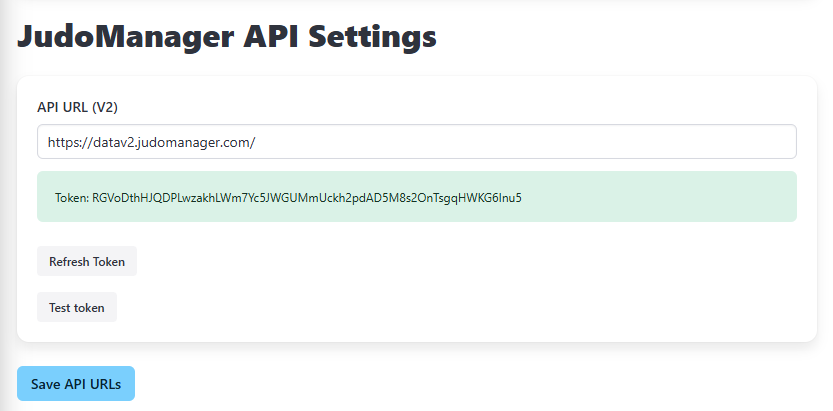
| Field | Meaning |
|---|---|
| API URL (V2) | The address JudoNet sends data to. |
| Token | The credential authorising this JudoNet. |
Three buttons:
- Get Token from Selected Server — fetches a token from the JudoManager server. Use this when the page says Token is empty.
- Refresh Token — fetches a new one, replacing the current.
- Test token — checks the token actually works and reports back. Do this during setup rather than discovering a bad token mid-competition.
JudoBase API Settings
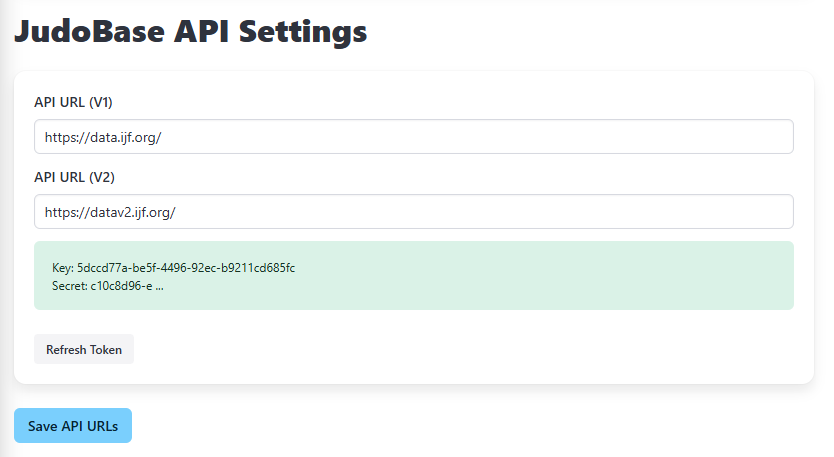
| Field | Meaning |
|---|---|
| API URL (V1) and API URL (V2) | The two Judobase addresses JudoNet uses. |
| Key and Secret | The credentials. Only the first part of the secret is shown. |
Get Token from Selected Server and Refresh Token work the same way as above.
Save API URLs saves the addresses. Changing an address makes JudoNet reconnect to the API with the new one immediately.
Graphics Broadcast
Graphics Broadcast Port
The UDP port JudoNet broadcasts live contest data on for CG - JudoGraphics. Default 5000.
CG - JudoGraphics listens on this port for the clock, scores and names it puts on the broadcast picture. Both ends must agree, so change it only if CG - JudoGraphics has been configured differently.
JudoNet's own labels shorten the name to Graphics — this section is headed Graphics Broadcast and the master switch reads Broadcast UDP to Graphics. They mean CG - JudoGraphics.
This has effect only while the Broadcast UDP to Graphics master switch is on, and only if at least one network interface has UDP sending enabled on Live data.
FairReplay Broadcast
These settings matter only if the venue is using the FairReplay video system. They control what JudoNet tells the FairReplay Recorders, so that recordings are automatically tagged with what happened.
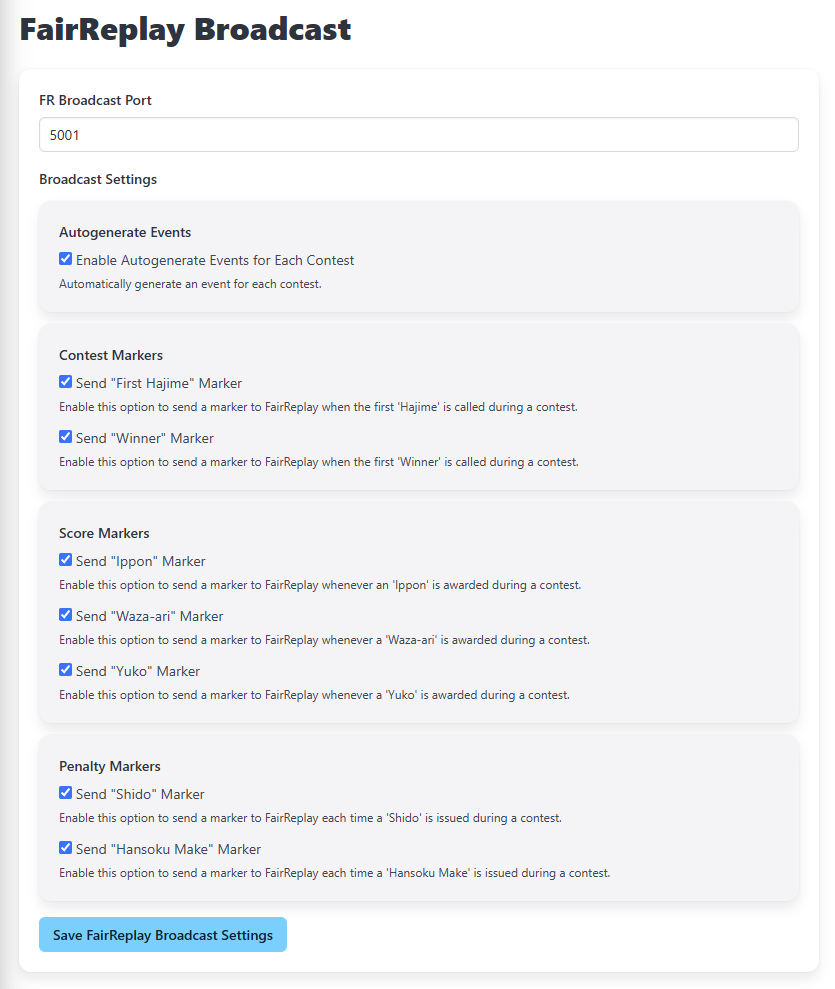
FR Broadcast Port
The UDP port for markers and events — the things that tag a recording. Default 5001, which is what FairReplay Recorders expect.
FR Recorder Data Broadcast Port
A second, separate broadcast on its own port, default 5002, carrying the live contest data — the running clock, the score, the result — so that FairReplay Recorder can show contest information alongside the video.
These two are easily confused. 5001 carries markers: single moments, tagged into the recording, used later to find things. 5002 carries live data: a continuous stream of the current state, used to display information as it happens. They are independent.
Autogenerate Events
Enable Autogenerate Events for Each Contest — on by default.
Creates an event covering each whole contest, from the first hajime to the winner being declared. An event is a span of time rather than a single moment, which is what makes a contest findable as a unit in FairReplay.
This is independent of the markers below. JudoNet always works out when the first hajime happened and remembers it; the Send "First Hajime" Marker switch only decides whether a marker is also broadcast at that moment. Turning that marker off does not stop events being generated, and the same is true of Send "Winner / No-Winner" Marker at the other end.
What can stop an event being generated is JudoNet never recognising the start. It recognises it from a packet showing display mode 6 with the clock actually running, outside golden score. A contest that ends without the clock ever having run — a hansoku-make before the first hajime, for example — produces a winner but no event, whatever this setting says.
The start time itself is calculated from the clock rather than from when the packet arrived, so it is accurate even though mode 6 may have been on screen for some time before the contest began.
Contest Markers
| Marker | Default | Sent when |
|---|---|---|
| Send "First Hajime" Marker | On | The first hajime of a contest is called. |
| Send "Winner / No-Winner" Marker | On | A winner — or no winner — is first declared. |
Score Markers
| Marker | Default | Sent when |
|---|---|---|
| Send "Ippon" Marker | Off | An ippon is awarded. |
| Send "Waza-ari" Marker | Off | A waza-ari is awarded. |
| Send "Yuko" Marker | Off | A yuko is awarded. |
Penalty Markers
| Marker | Default | Sent when |
|---|---|---|
| Send "Shido" Marker | Off | A shido is issued. |
| Send "Hansoku Make" Marker | Off | A hansoku make is issued. |
The score and penalty markers are off by default because they produce a great many markers. Turning them all on at a large competition gives you a recording tagged with every score of every contest — useful for analysis, cluttered for finding a fight. Turn on only what somebody will actually use.
Save FairReplay Broadcast Settings applies all of the above. Changes take effect immediately, provided the Broadcast UDP to FR master switch is on.
Scoreboard Settings

Scoreboard WebSocket Port
The port JudoNet uses to open its connection to each scoreboard. Default 855.
This is the connection that actually carries the packets — discovery finds a scoreboard, but this connection is how JudoNet listens to it. It must match what the scoreboard software expects, so change it only if the scoreboards have been configured differently.
Changing this affects every scoreboard at once. If it is wrong, JudoNet finds the scoreboards but cannot connect to any of them — they appear in the list but no contest data arrives.
Miscellaneous Settings

Maximum Winner / No-Winner Mode Time Threshold (in seconds)
How long a contest may stay in winner display mode before JudoNet treats it as finished. Default 20 seconds.
When the winner screen appears, the contest is over — but the scoreboard may sit on that screen for a long time if the operator is slow to move to the next contest. JudoNet cannot wait indefinitely, so it takes the winner timestamp plus this threshold as the end of the contest, capped at the last packet actually received.
This value is directly visible in the video: it decides how much footage after the result is included when the Video CutterV2 cuts the contest. Twenty seconds normally covers the final score and the bows.
- Raise it if clips are consistently ending too early, before the bows.
- Lower it if clips carry a long tail of nothing after the result.
JudoNet also waits until at least 30 seconds have passed since the winner screen before publishing a contest as finished at all. That is why contest timings — and therefore video clips — appear about half a minute after a fight ends. That delay is fixed and not configurable.
Where settings are stored
All of the above lives in a single file:
C:\JudoNet\settings.json
JudoNet writes it every 18 seconds and again when it shuts down, so a change made in the browser is on disk almost immediately.
The file also holds the master switch states, which is why the switches are as you left them after a restart.
The access token is kept separately, in C:\JudoNet\authtoken.json.
Settings that are not on this page
A few things that look like settings are not:
| What | Where it actually is |
|---|---|
| The master switches | Fixed at the top of every page — see the master switches. |
| Which JudoManager server / competition | Live data. |
| Which scoreboards are enabled | Live data. |
| Which network interfaces broadcast | Live data. |
| Language | The bottom of the left-hand menu. |